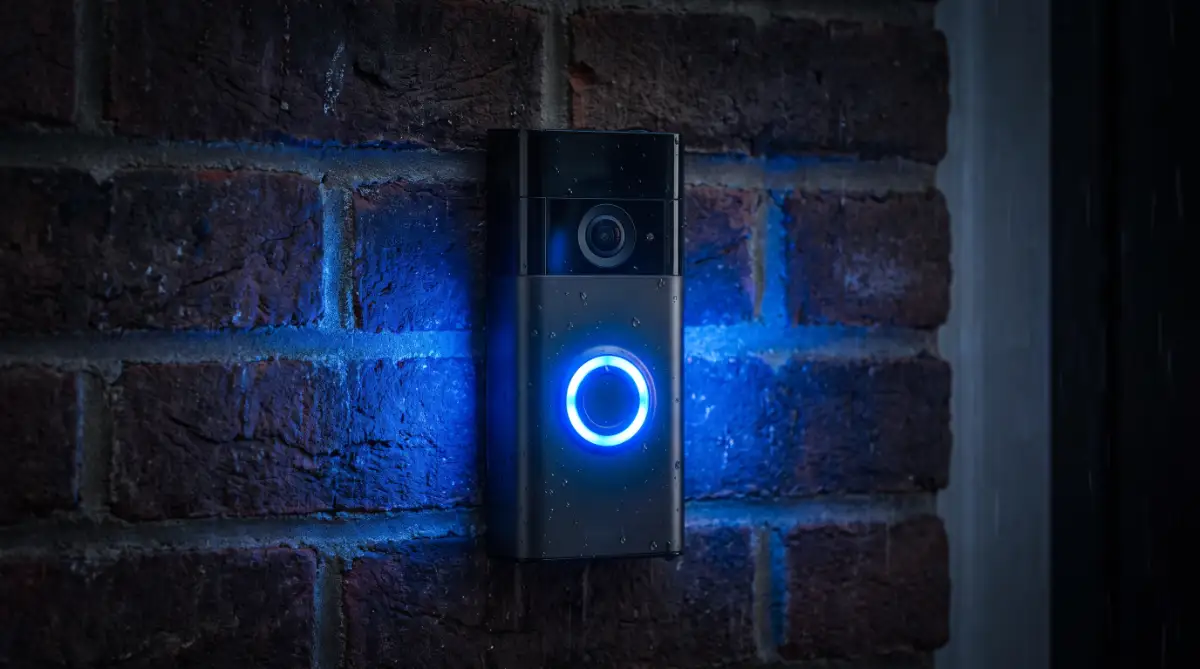
A flashing blue light on your Ring Doorbell indicates the device is actively charging, performing a mandatory firmware update, or failing to connect to your local Wi-Fi network. To fix this instantly, charge the battery to 100%, switch your router to a 2.4 GHz band, and perform a 20-second hard reset.
The Anxiety of a Disconnected Front Door
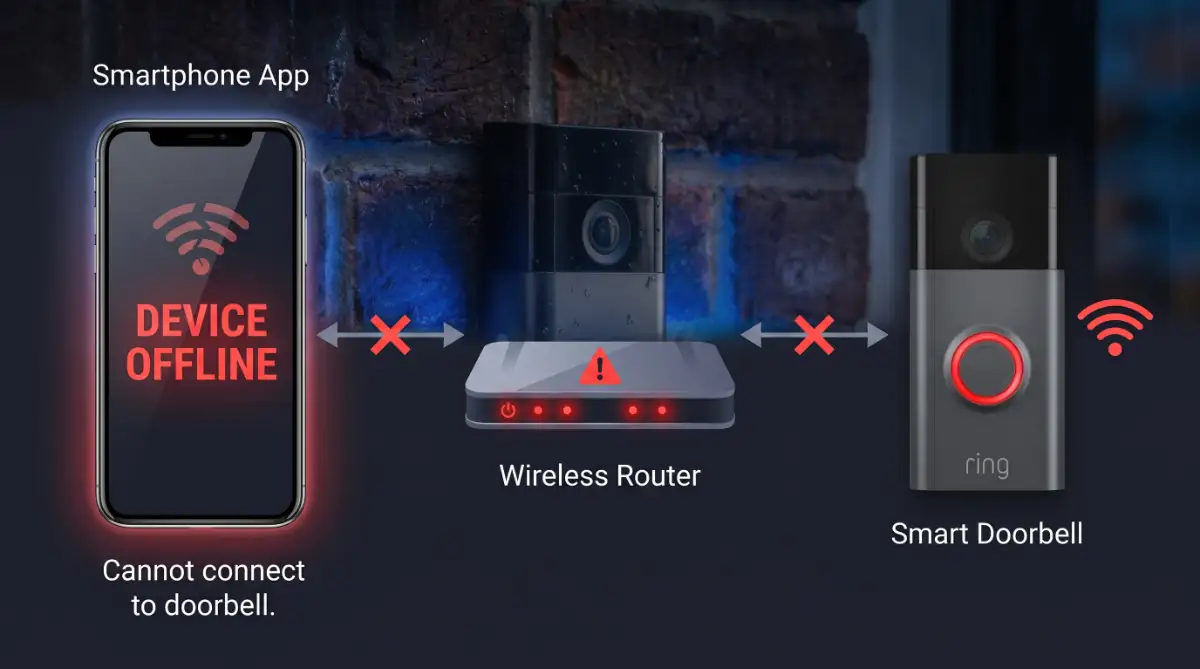
You hear a heavy knock at the front door, but your smartphone remains completely silent. You step outside to check your smart camera, only to find an endless, pulsing blue circle. This tiny flashing light instantly ruins your peace of mind.
You installed this specific device to protect your family and monitor daily deliveries. When it gets stuck in an infinite loading loop, your primary layer of home security vanishes. Most people panic in this moment, assuming their expensive hardware is permanently broken.
The stress of missing a high-value package delivery or an important visitor is incredibly frustrating. You sit on the porch pressing the main button, staring at the blue light, wondering if your home network is completely failing. Do not rush out to buy a replacement camera just yet. I will walk you through exactly how to decode this light pattern and get your physical security back online today.
Decoding the Blue Circle Patterns
Smart home cameras communicate their internal status through very specific light patterns. The blue light is never a random glitch; it is the hardware trying to tell you exactly what it needs. We must diagnose the specific flash movement before applying a permanent fix.
Sometimes, the light pulses slowly, mimicking a human heartbeat. Other times, the top half flashes rapidly while the bottom half stays completely dark. Identifying the exact movement saves you hours of pointless troubleshooting.
Let us look at the most common blue light patterns and what they actually mean for your device.
Blue Light Pattern Internal Device Status: Required Action
Spinning Blue Circle Standard Setup Mode Open your mobile app and connect to Wi-Fi.
Pulsing Blue (Like a heartbeat) Firmware Update in Progress. Do nothing. Wait 15 minutes for the update to finish.
Flashing Top Half Only Incorrect Wi-Fi Password Forget the network in the app and re-enter your password.
Flashing blue, rapidly booting up/rebooting Wait 60 seconds for the camera to start completely.
Step-by-Step Hardware and Network Fixes
Once you identify the pattern, you can take direct action. Most connection errors stem from inadequate power delivery or invisible network interference. We will address the physical hardware first before moving to the software settings.
Step 1: Maximize the Power Supply
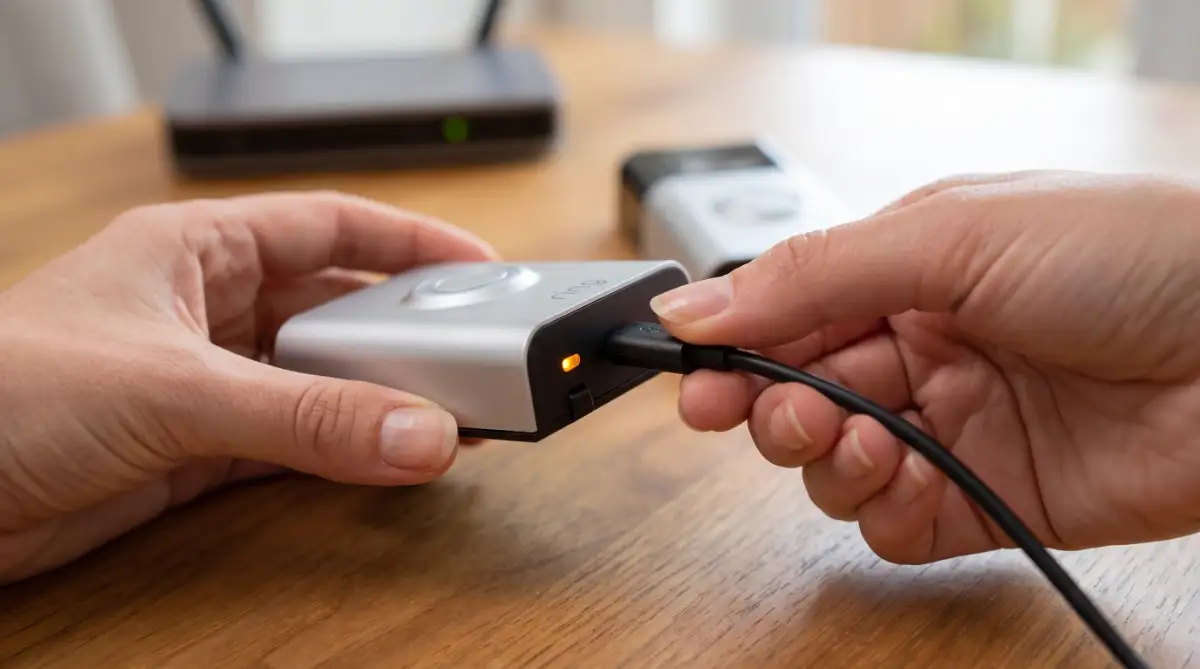
If your battery level drops below ten per cent, the internal Wi-Fi chip shuts down to conserve energy. Pop the battery pack out of the casing and plug it directly into a wall charger using a micro-USB cable.
Wait until both the orange and green lights on the battery glow solid green. This specific light combination indicates a full charge. Never rely on the mobile app's battery percentage reading if the device is currently sitting offline.
Step 2: Fix Frequency Interference
Your front door is a terrible environment for a clean wireless signal. The internet signal has to push through heavy brick walls, solid metal doors, and thick insulated glass. If your router is sitting on the opposite side of your house, the doorbell will flash blue as it desperately searches for a signal.
Most smart home devices are strictly built to run on 2.4 GHz Wi-Fi bands. If your modern router is forcing the doorbell onto a high-speed 5 GHz band, the connection will drop constantly. Log into your router settings and split your wireless bands into two separate network names.
You need a highly stable foundation for your daily technology. You would not leave your digital investments unguarded without mastering blockchain assets: a guide for long-term security. Do not leave your physical home security running on a weak, unreliable internet connection.
Step 3: Perform a Hard Factory Reset
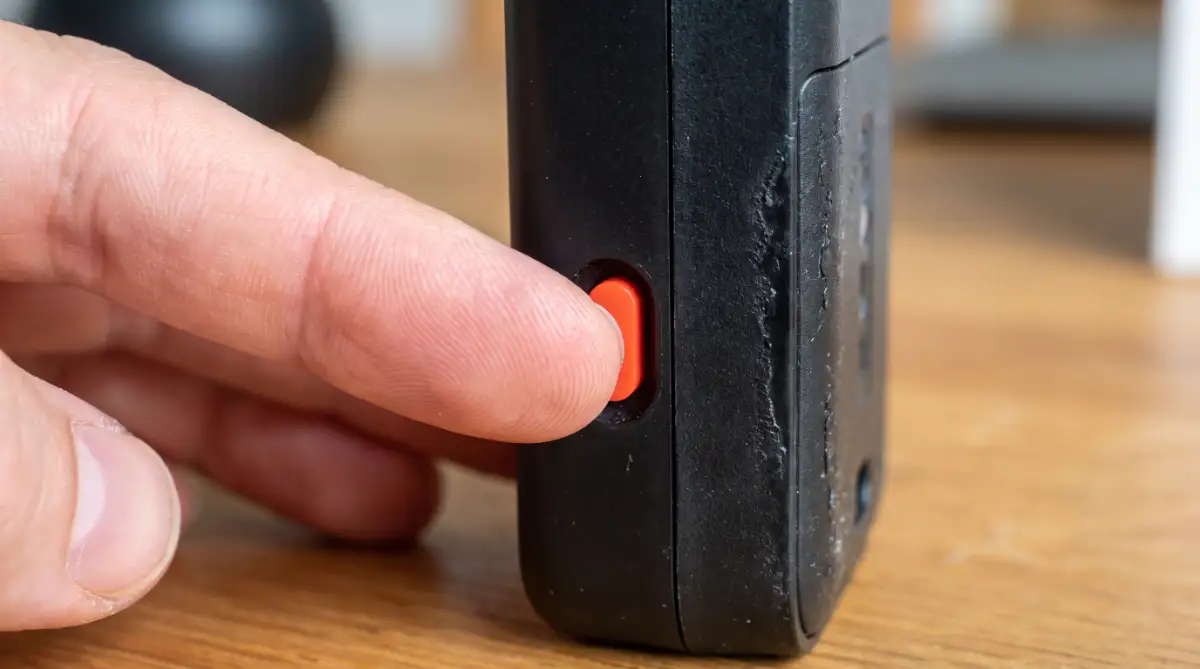
If the battery is completely full and the Wi-Fi signal is strong, the internal software might be frozen. You need to perform a hard reset to clear the corrupted memory. Remove the faceplate and locate the small orange setup button on the hardware.
Press and hold this specific button for exactly twenty seconds. The front light will flash violently a few times and then go completely dark. This action wipes the temporary cache and forces the motherboard to reboot fresh.
Advanced Electrical Checks for Hardwired Units
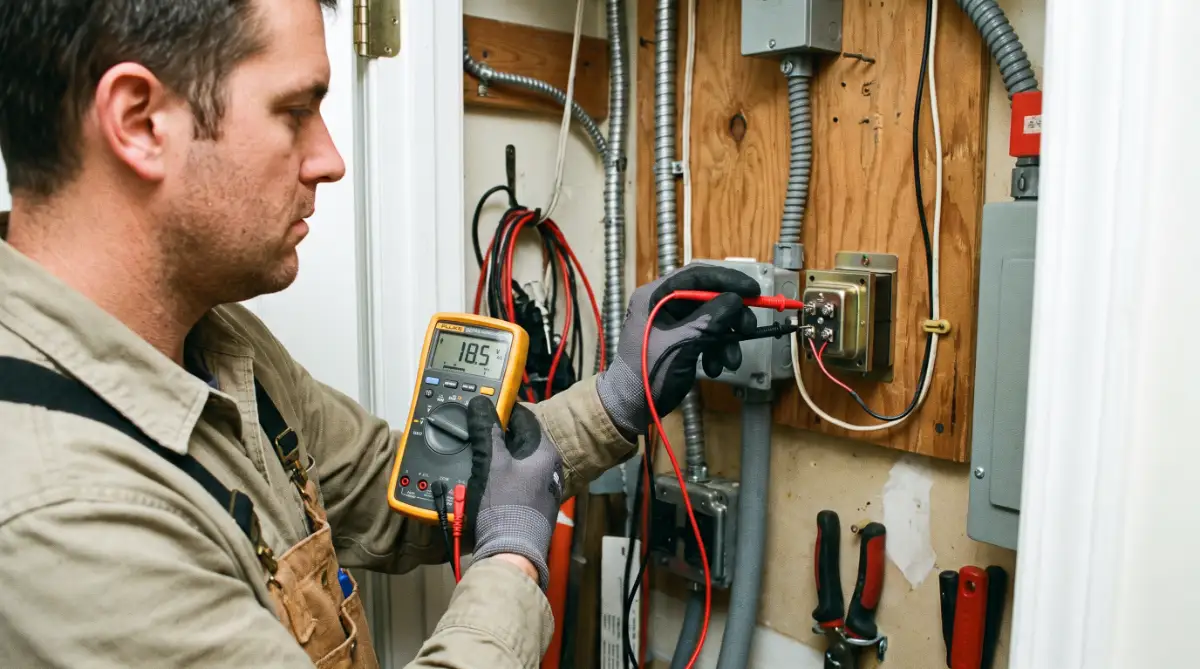
If your specific unit is hardwired directly to your home electricity, the flashing blue light usually indicates a severe voltage drop. Your camera requires a consistent flow of electricity to power the video lens and the wireless antenna simultaneously.
Older homes typically use 8-volt doorbell transformers. Modern video doorbells require a minimum of 16 volts to function properly. You can test this using a standard electrical multimeter.
If the multimeter reads anything below 16 volts, the camera will constantly disconnect and flash blue. You will need to hire an electrician to upgrade the transformer box inside your wall. You can read the official electrical requirements directly on the Ring Official Support Documentation to verify your exact model's needs.
Dangerous Hardware Pitfalls to Avoid
People often lose their patience during network outages and start making highly emotional mistakes. Pressing the setup button rapidly in frustration confuses the motherboard. Doing this repeatedly can permanently corrupt the internal firmware.
Treat the hardware gently and always wait five minutes after any reset attempt. Rushing the software update process is the fastest way to permanently brick your device.
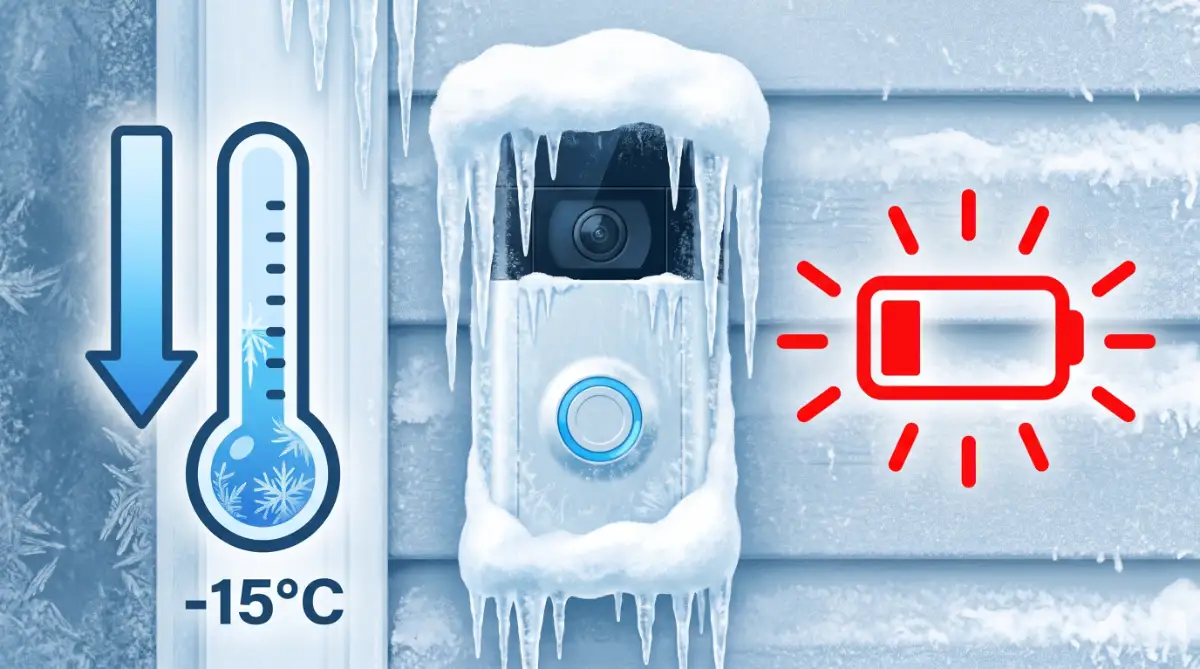
Another massive mistake is ignoring extreme weather limitations. Lithium-ion batteries physically stop holding an electrical charge when the outside temperature drops below freezing. If your blue light starts flashing during a heavy winter blizzard, bring the entire unit inside your house to warm up before troubleshooting.
Making impulsive, frustrated decisions with expensive hardware always leads to bigger losses. This behaviour is incredibly similar to ignoring hidden dangers in life insurance policies. Avoid these traps. Small, emotional oversights today will cost you significant amounts of money when an actual emergency happens.
Troubleshooting Your App Settings
Sometimes the hardware is working perfectly, but your mobile application is feeding you old data. Open your smartphone settings and clear the cache for your specific smart home app.
Next, check the "Device Health" section within the app interface. Look for a metric called RSSI (Received Signal Strength Indicator). This number tells you exactly how strong the internet connection is at your front door.
If your RSSI number is marked in red or is higher than -60, your video feed will constantly drop. Securing this digital connection is just as critical as fixing the physical hardware. Weak network passwords expose your entire household to hackers.
Always encrypt your home router to avoid hidden privacy leaks in everyday AI automation tools that share your same internet connection. Your digital privacy relies entirely on the strength of your primary Wi-Fi network.
Frequently Asked Questions
Why does my camera flash blue when someone walks by?
The device emits a solid blue light when it actively detects physical motion. If the light flashes quickly and turns off, it is simply recording a short video clip to your cloud storage account.
Can a weak Wi-Fi password cause flashing blue lights?
Yes. If you recently changed your home internet password and forgot to update the smart camera app, the device will flash blue to indicate an authentication error.
How long does a standard firmware update take?
A normal software update takes roughly fifteen minutes to complete. The light will pulse slowly during this time. Never remove the battery or press buttons while this specific pulsing pattern is active.
Final Action Plan for Connectivity
You now have the exact technical knowledge to diagnose and fix your offline camera. You understand how to read the light patterns, check the battery health, and test your electrical voltage.
Do not let a blinking light intimidate you. Start by bringing the battery inside to charge completely. Next, verify that your home router is broadcasting a clear 2.4 GHz signal toward your front door.
Finally, perform a clean factory reset to clear any leftover software bugs. By following these highly methodical steps, you regain absolute control over your property. You ensure your front door remains secure, connected, and fully operational every single day.
Disclaimer: The troubleshooting steps provided in this guide are for informational purposes. Electrical testing can be dangerous. If you are uncomfortable handling wiring or measuring transformer voltage, always hire a licensed professional electrician to avoid personal injury or property damage.